Enhance and compare
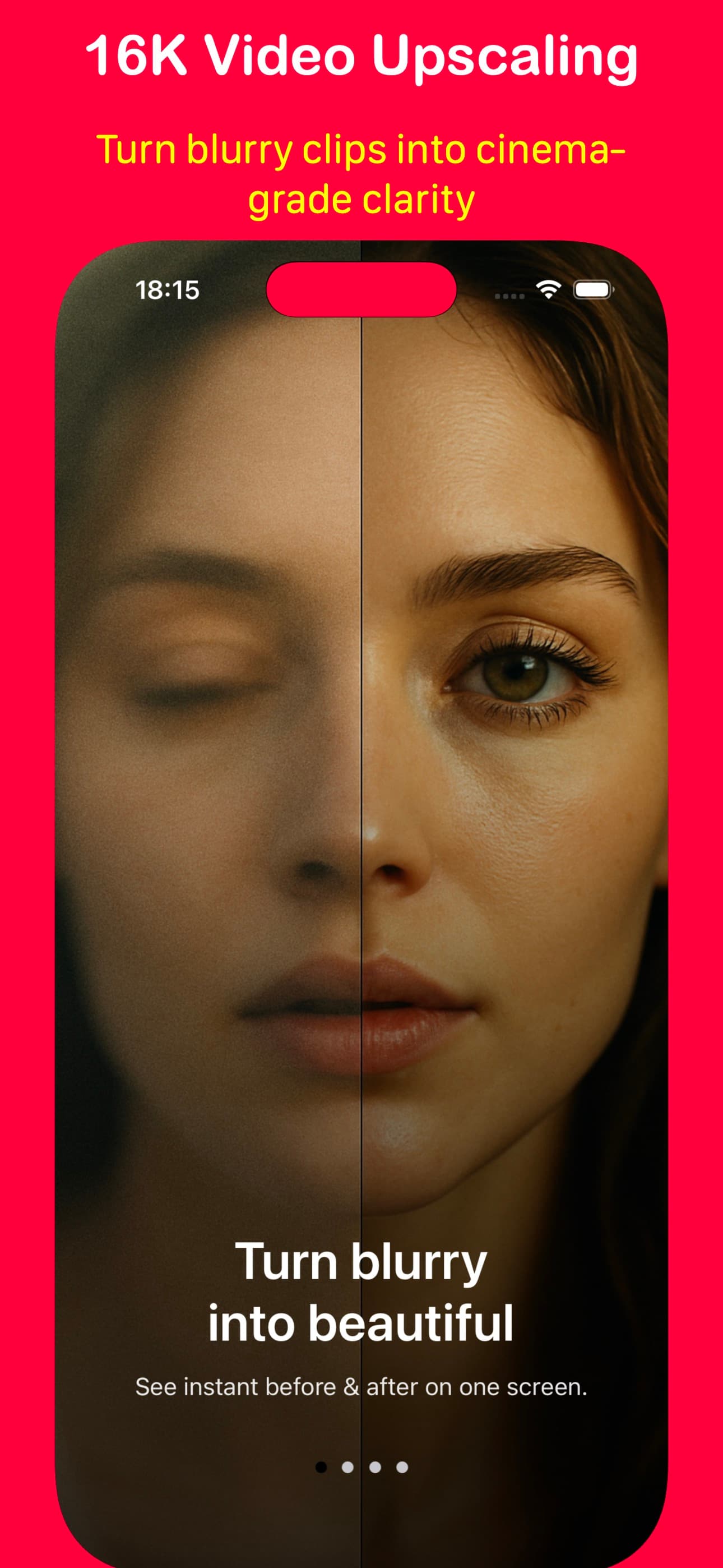
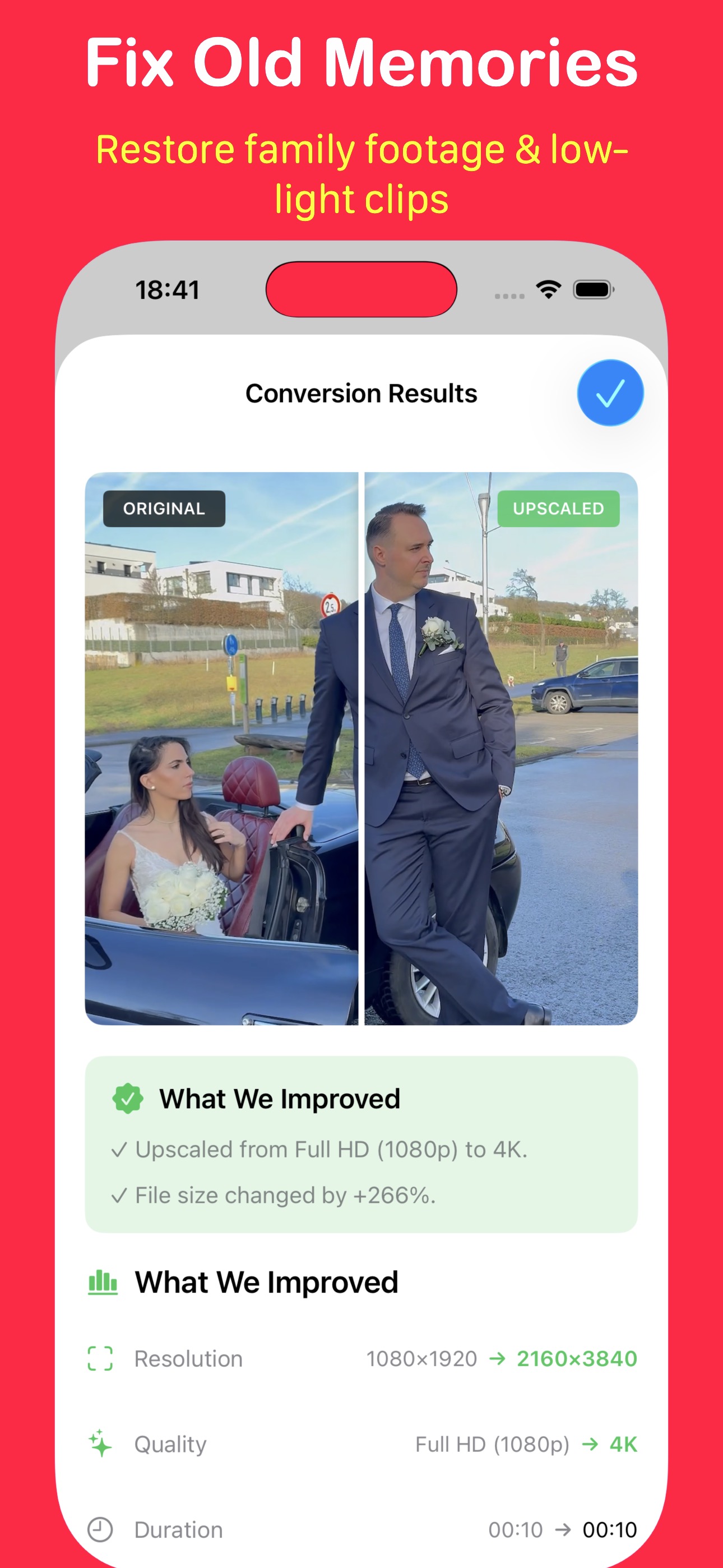
Try a model on old, soft or compressed footage. Compare the before and after to decide what works for your clip.

Your footage. On your device.
Enhance old family recordings, soften compression artefacts and enlarge everyday clips. Upscale and convert on your iPhone or iPad, without uploading the video for processing.
Free SD, HD and 2K conversions. Premium options in the app.
Made for the videos you already have
Try a model on old, soft or compressed footage. Compare the before and after to decide what works for your clip.
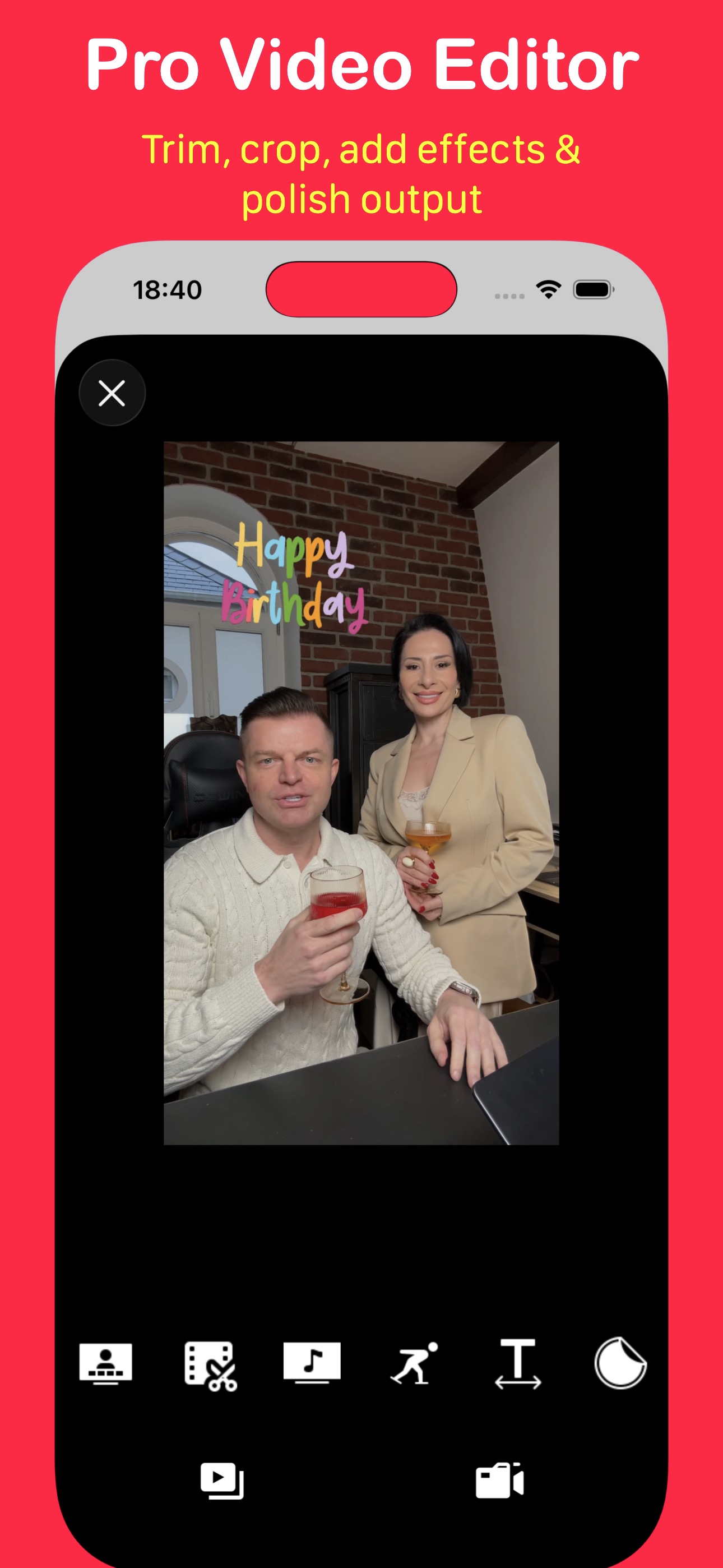
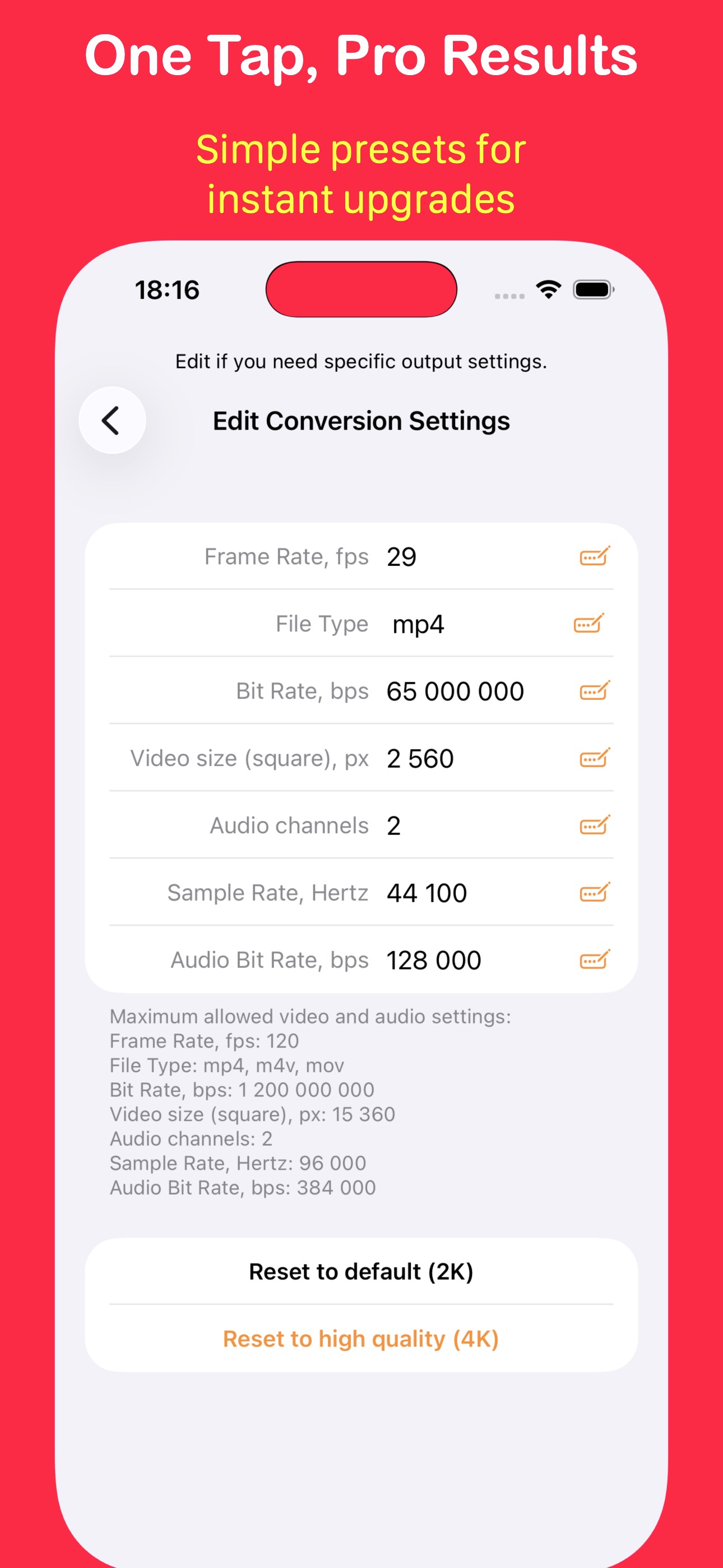
Choose resolution, format, frame rate and bitrate. Export MP4, MOV or M4V, with trim, crop and editing tools available in the app.
Upscaling, conversion and editing run on your device. Optional AI metadata suggestions may use an online service; see the privacy answer below.
Import from Photos or Files. Download any iCloud-only original first.
Start with a short sample and a fast model. Higher resolutions take more time and storage.
Keep the app open during processing, then save to Photos or share the result.
Choose what the clip needs
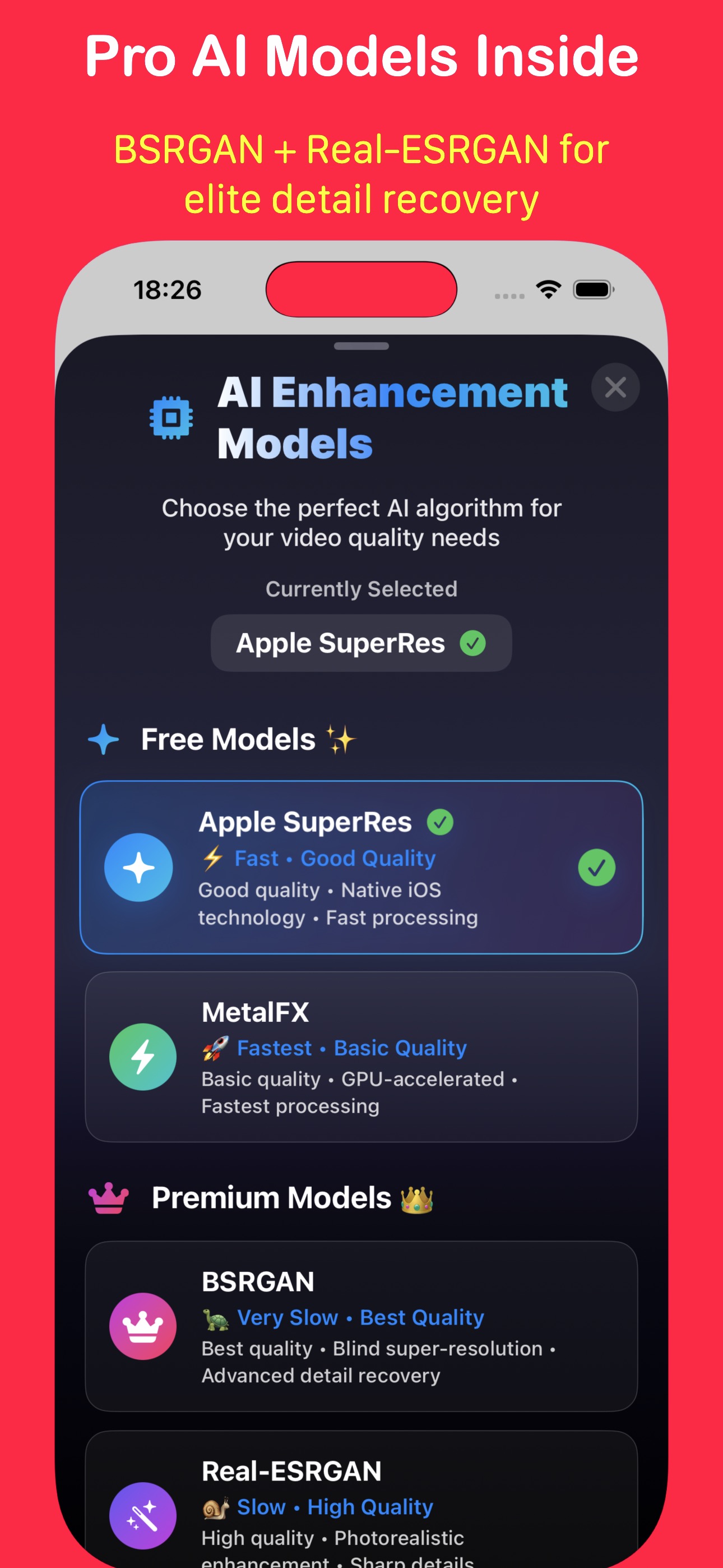
Fast · free
Resize clear footage quickly with the device’s GPU. A useful starting point for everyday conversion.
Fast · free · iOS 26+
Apple’s on-device enhancement for everyday videos. Available on iOS 26 or later.
Detailed · premium
Try it for cleaner edges and fine textures. Allow more processing time than with the fast models.
Restoration · premium
Try it on soft, noisy or compressed footage. Compare a short sample before converting a long recording.
A larger file is not automatically a better picture. Results depend on the source; 8K and 16K exports also depend on device and codec limits.
Choose how you use it
For regular use
Current prices, pack sizes, subscription periods and any trial terms appear in the app before purchase. Manage subscriptions in your Apple Account settings. Terms of use · Privacy policy
Inside the app
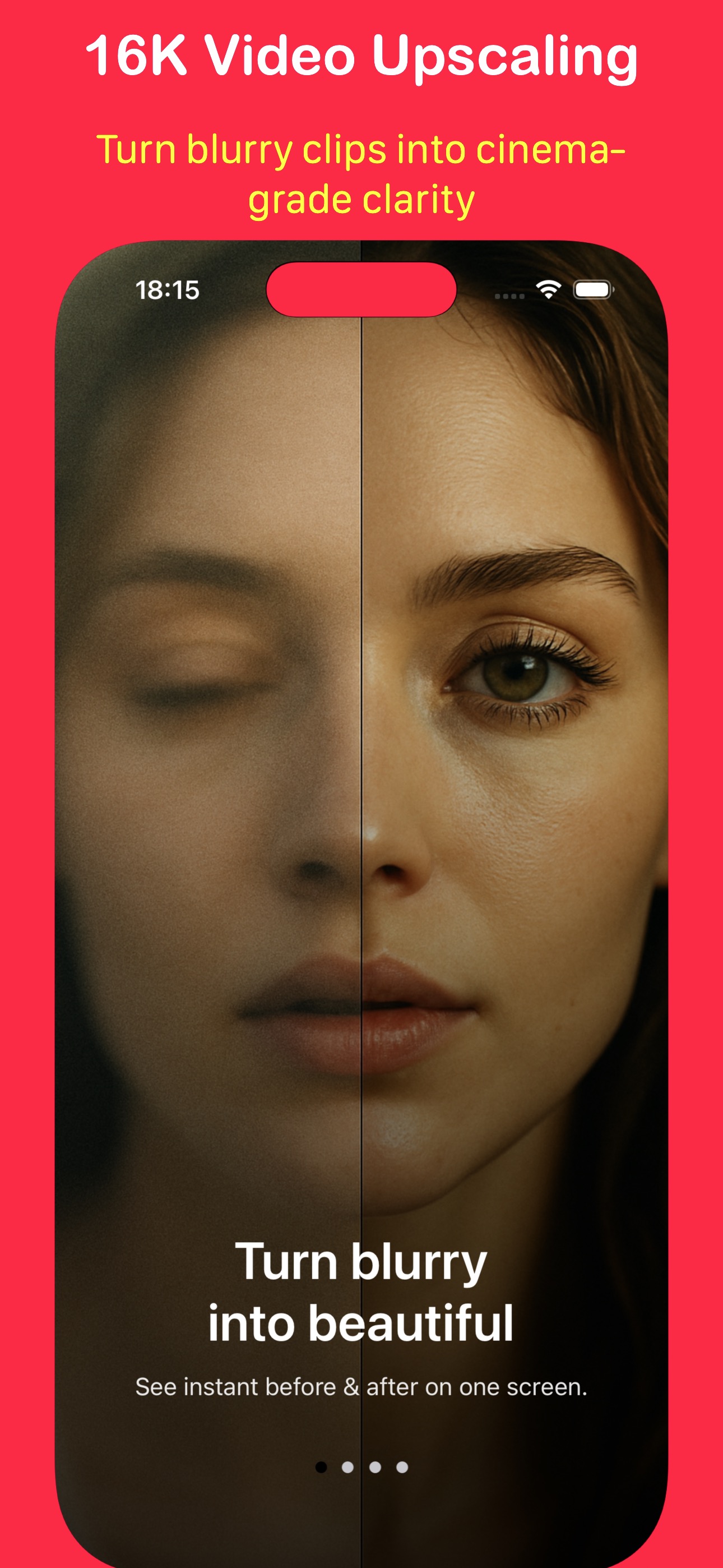
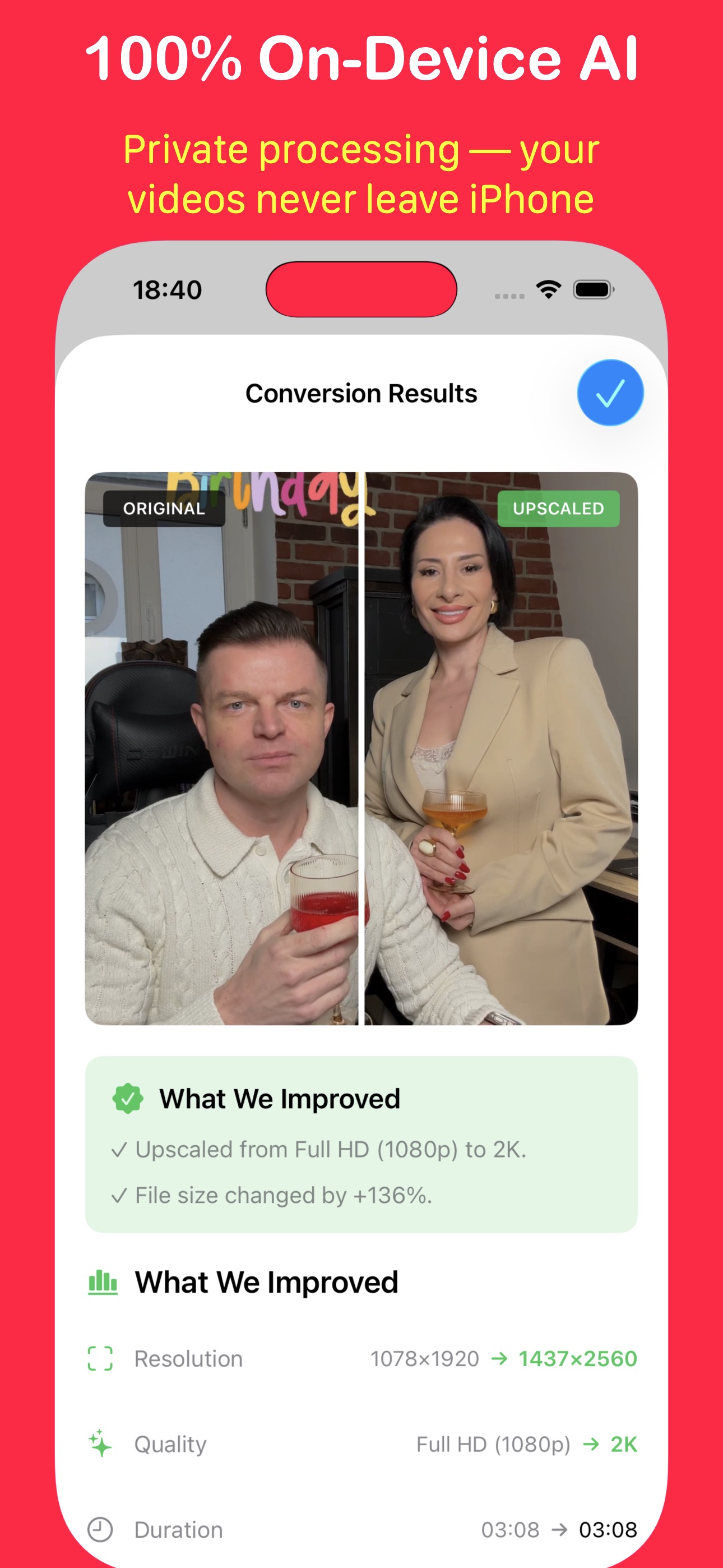
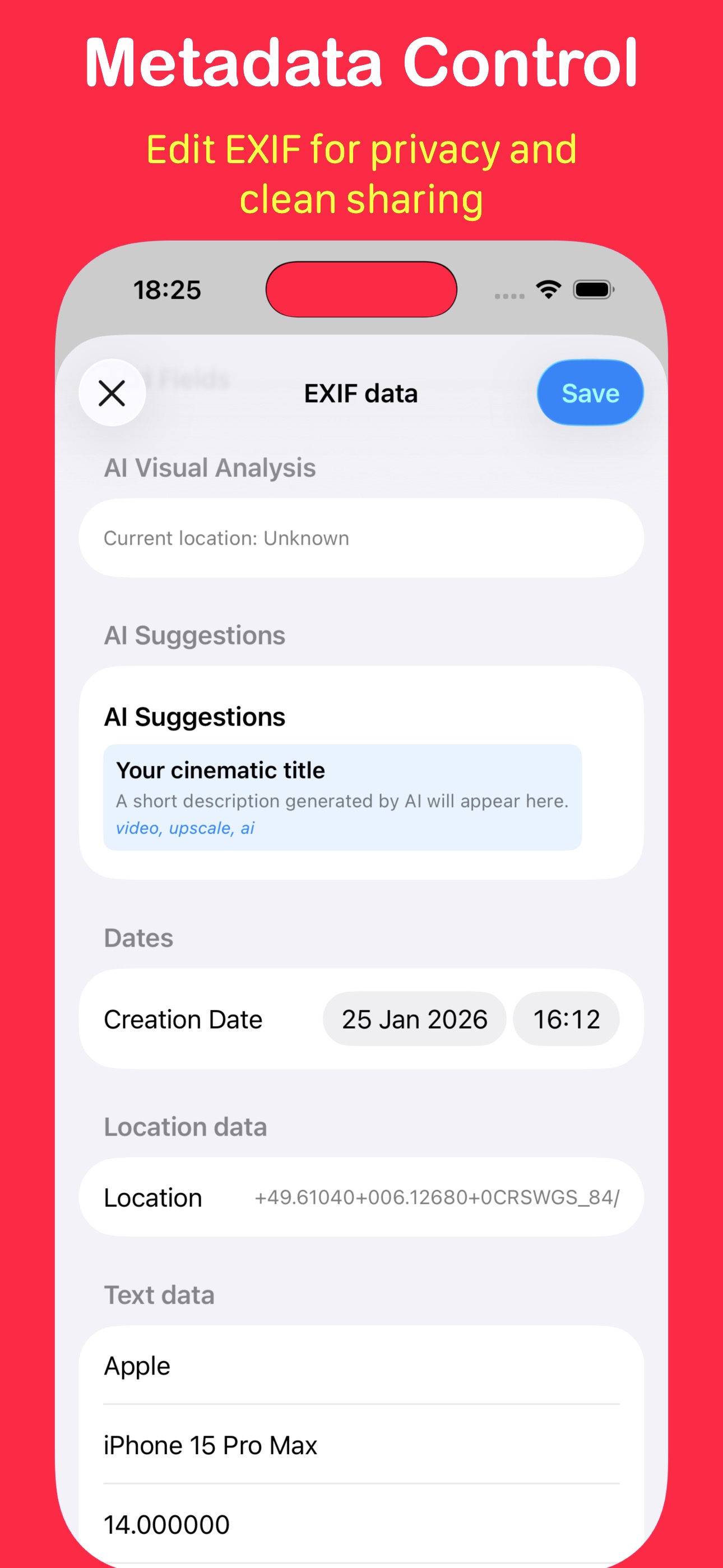
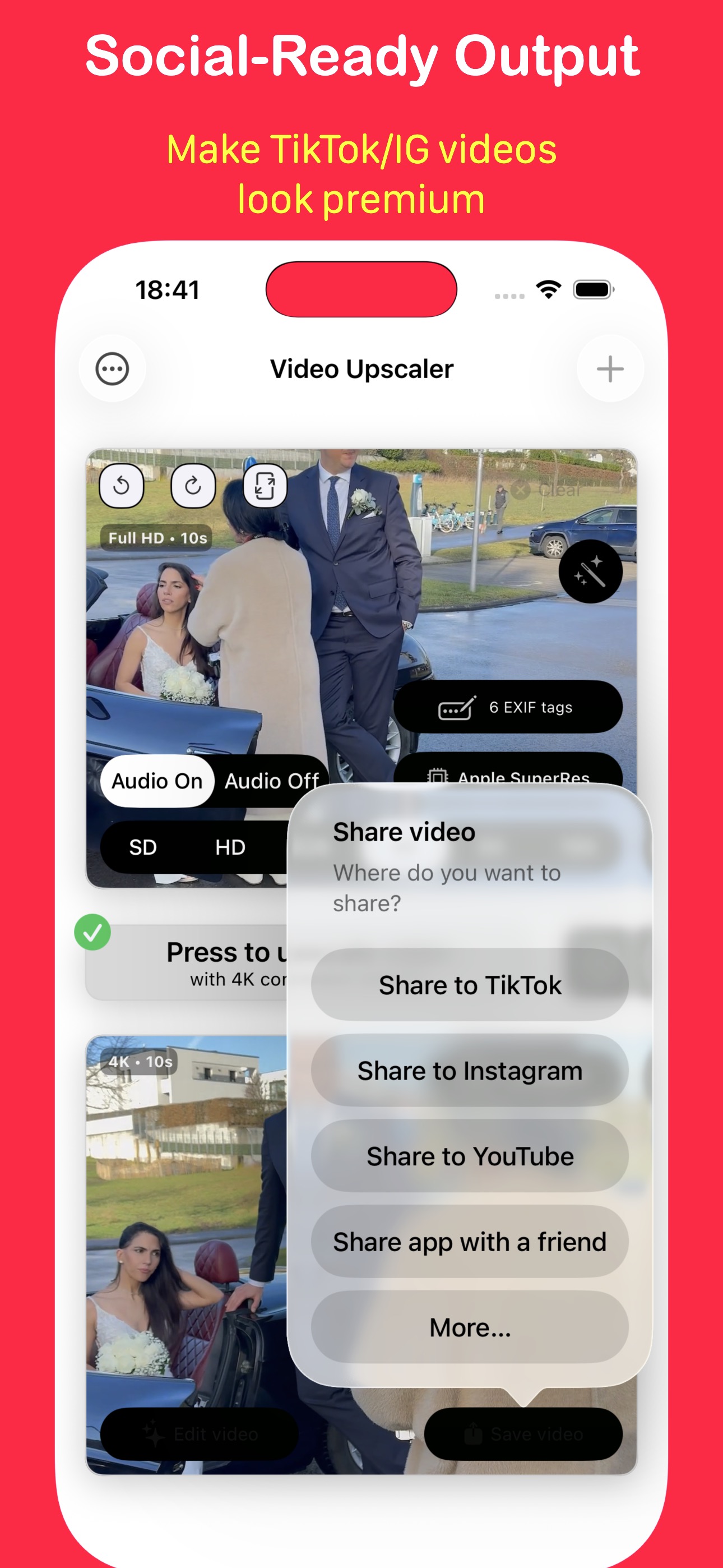
App Store previews. Scroll through all ten images.
Practical reading
Choose a clip, compare enhancement models and export a clearer video on your iPhone or iPad. A practical guide to local video upscaling.
Read the guideCompare local and cloud video processing: where files go, what needs internet access, and how hardware, privacy and cost affect your choice.
Read the guideA local video workflow for creators: import a draft, choose an enhancement model, compare the result and save a master ready to share.
Read the guideThe app and the graphics technology behind its local processing.
Read on Medium (opens in a new tab)What uploading footage changes, and why we process video on the device.
Read on Medium (opens in a new tab)Adapting Apple’s graphics framework to pre-recorded footage.
Read on Medium (opens in a new tab)Straight answers
From choosing a model to finding a finished export.
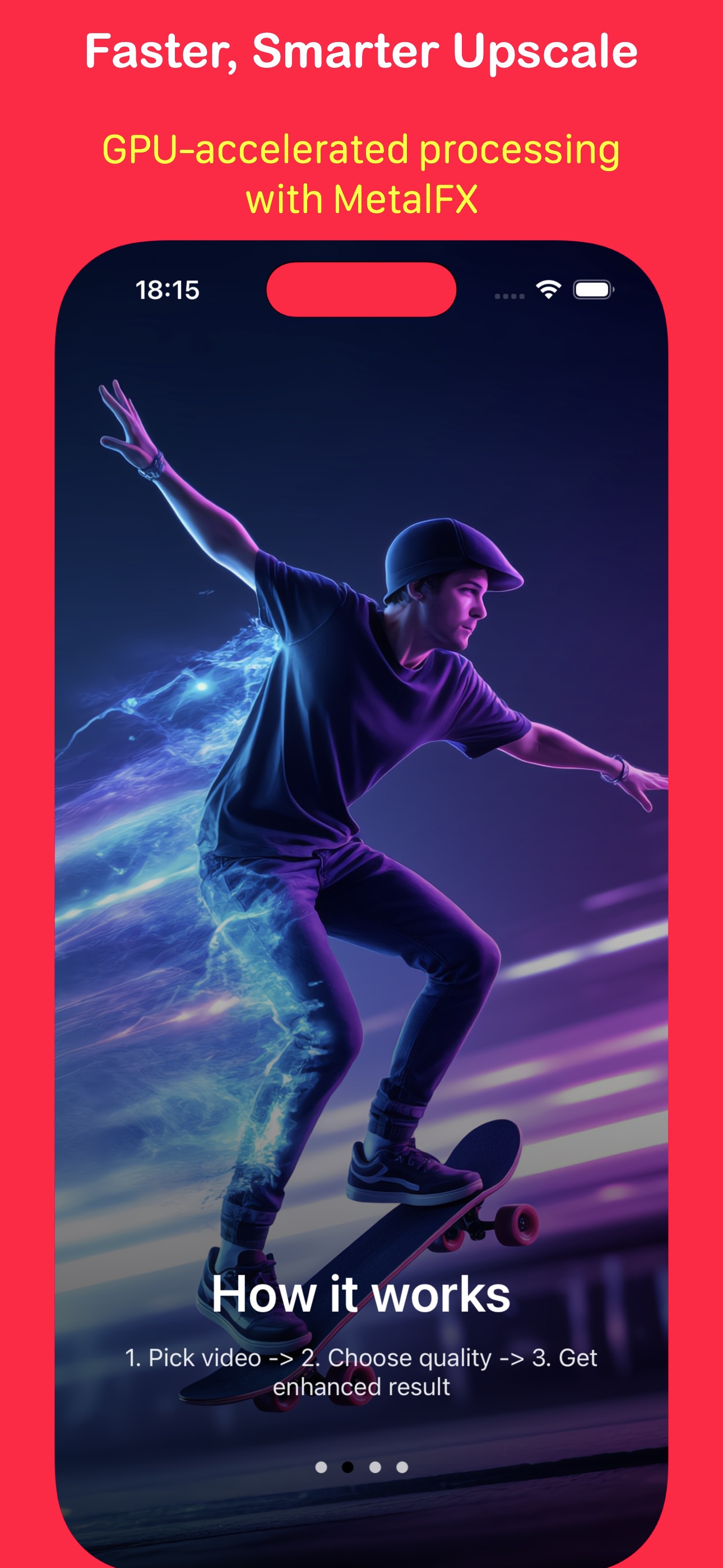
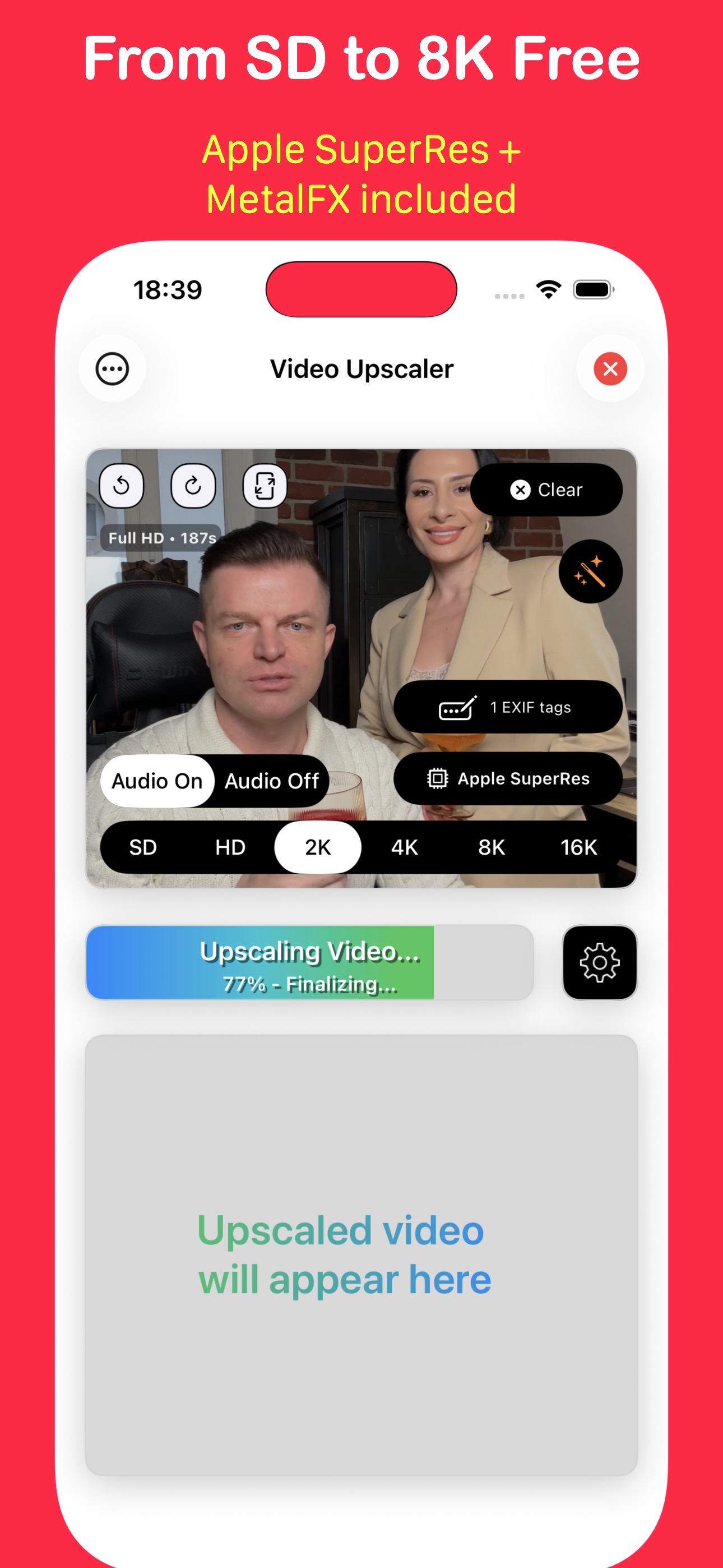
Contact supportSelect a video from Photos or Files, choose an output resolution and an enhancement model, then tap Convert. Start with a short clip, compare the original and the result, then save to Photos or share the finished video.
MetalFX resizes clear footage quickly. Apple SuperRes is a fast option for everyday videos and requires iOS 26 or later. Try Real-ESRGAN for edges and textures, or BSRGAN for soft, noisy or compressed footage. These two premium models take longer; compare a short sample before processing a long video.
No. Choose a resolution that suits the source and the screen where you will watch it. Larger exports need more time, memory and storage. Upscaling can make detail look clearer, but it cannot reliably recover detail that was never recorded. Device and codec limits may prevent very large exports.
Video upscaling, conversion and editing run on your device without uploading the video for processing. Download iCloud-only files first. Purchases, restoring a subscription and some optional services need internet access. AI metadata suggestions may send metadata and analysis results to an online service when local generation is unavailable.
Import videos that iOS can decode from Photos or Files. MP4, MOV and M4V are common choices; the codec inside the file also matters. Export formats are MP4, MOV and M4V. Renaming an unsupported file does not convert it to a supported format.
After conversion, use Save to Photos or the share button to keep the result. Allow Photos access if asked. The app creates a separate output file; it does not replace your original. Save or share a result you want to keep before clearing it in the app.
Free conversions use MetalFX or, where available, Apple SuperRes with SD, HD and 2K presets. BSRGAN, Real-ESRGAN and 4K, 8K or 16K exports need premium access. The app shows the current subscription, export-pack and promotional options before purchase.
Free exports, including free promotional exports, include a watermark. An active Pro subscription or an export that uses a paid export credit removes it. Export credits are used only after a successful premium conversion; a failed or cancelled conversion does not use a credit.
Use the same Apple Account as for the purchase. Open Premium features in the app menu, then tap Restore Purchase. To manage or cancel a subscription, open iPhone or iPad Settings, tap your name, then Subscriptions. Consumable export credits are stored on this device and are separate from a restorable subscription.
Every frame is processed on your device. Long clips, high resolutions and premium models need more work. Keep the app open while converting. Try a shorter clip, a lower resolution or MetalFX, and let the device cool down if it becomes hot. Processing time varies with the device and the video.
Check that the original plays correctly and has finished downloading from iCloud. Free some storage, reopen the app and try a short clip with MetalFX at HD or 2K. If it still fails, contact support with your device model, iOS version, chosen model and resolution, and the error message.
Increasing resolution adds pixels, but the visible improvement depends on the source and the model. Compare the same frame at the same zoom. A small resolution increase may be hard to see on a phone screen. Try a short sample with another model; strong motion blur, missed focus or heavy compression can limit the improvement.
Give an old clip another look
Start with a short video and the free models.