An alarm, not just a message
Once accepted and successfully scheduled, an AlarmKit alarm can sound through Silent mode and Focus. Check its status to see whether the request was accepted.

For the moments a message is easy to miss
An early flight. A study session. A friend who asked for a wake-up call. Send an alarm request to their iPhone and let them decide when you can help.
Free to download. Optional monthly or yearly Pro subscription.
A wake-up call, with permission
Once accepted and successfully scheduled, an AlarmKit alarm can sound through Silent mode and Focus. Check its status to see whether the request was accepted.
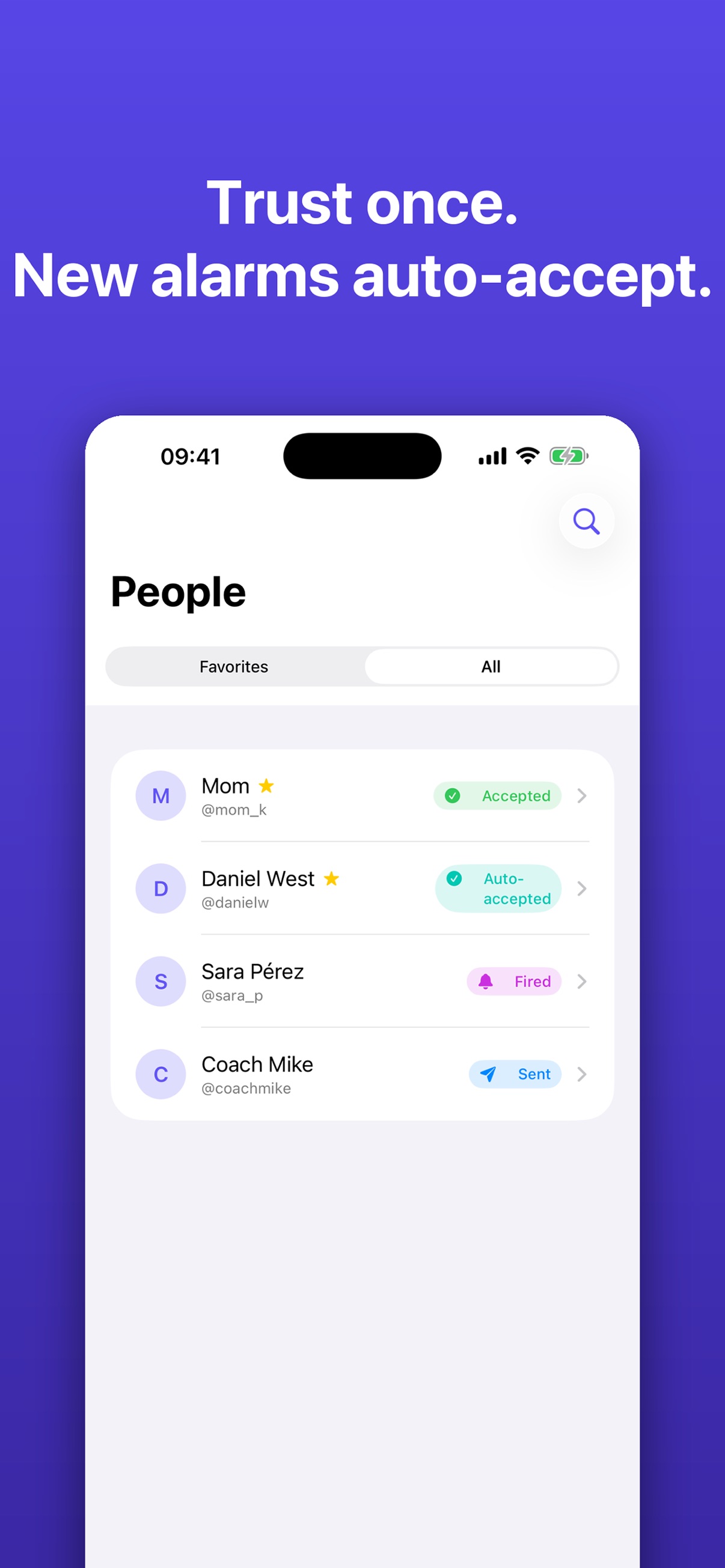
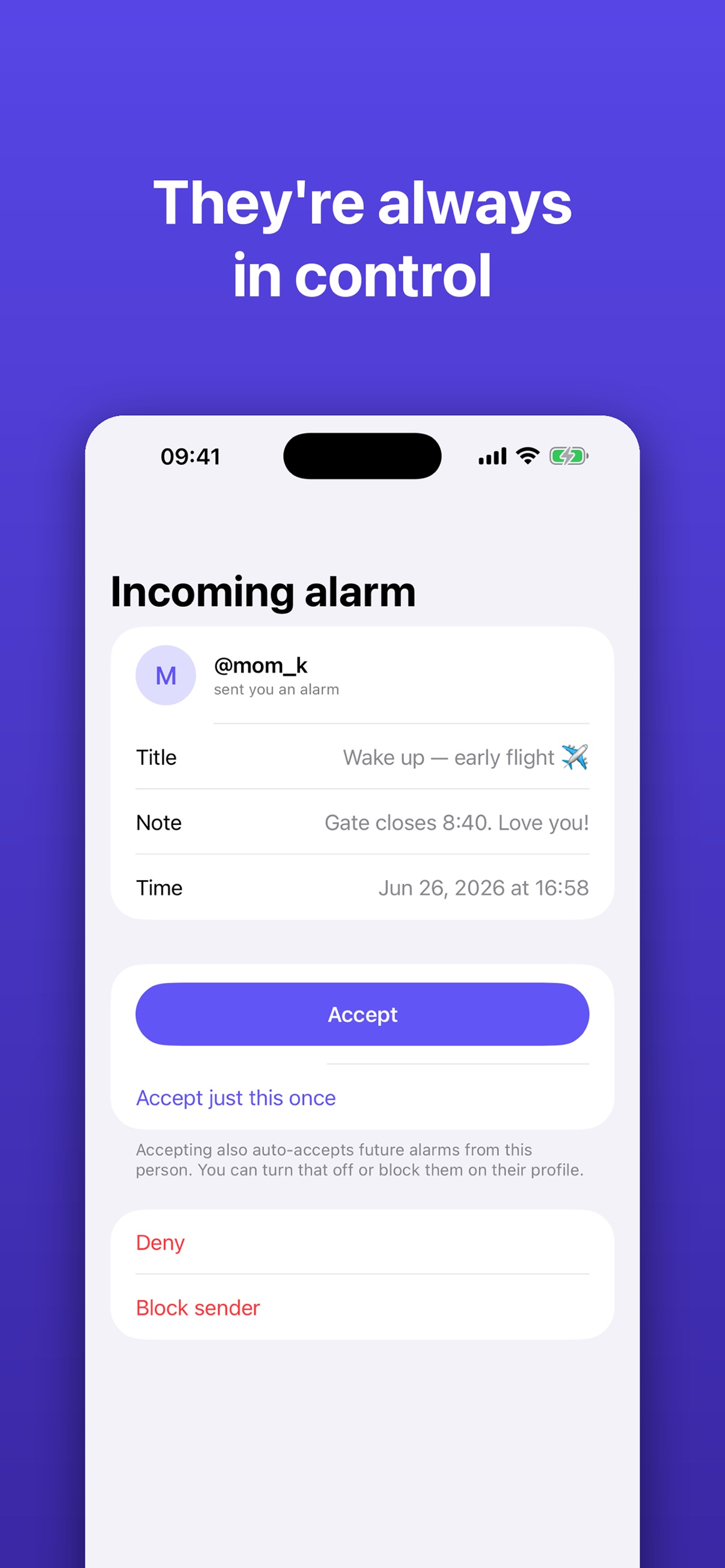
The recipient can accept once, decline, trust a sender for future requests or block them. Trust preferences can be changed in People.
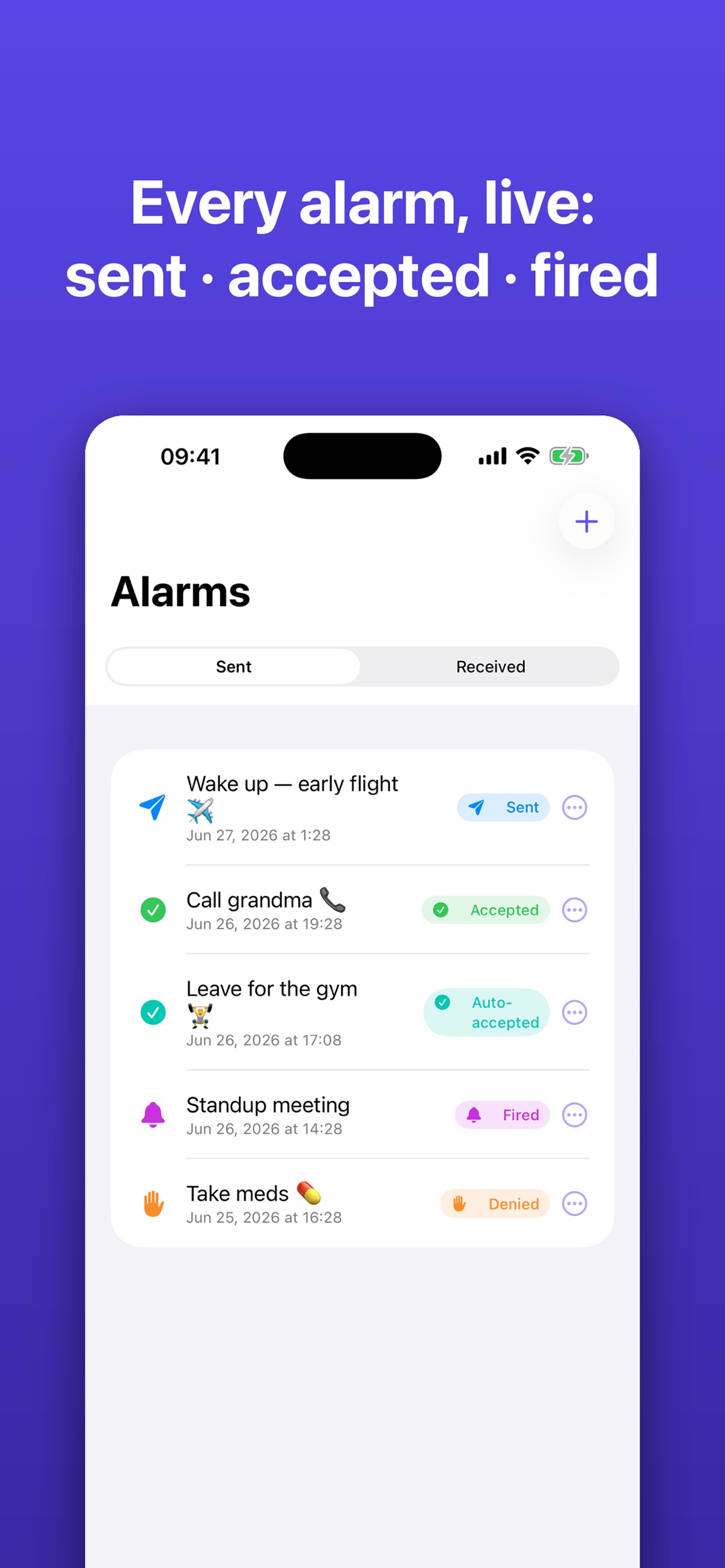
Find friends by username, save favourites and use quick-send widgets. Follow sent and received alarms in History.
Set up together
Both install Send Alarm, sign in with Apple and choose a username. Search with or without @, or send a friend an invitation.
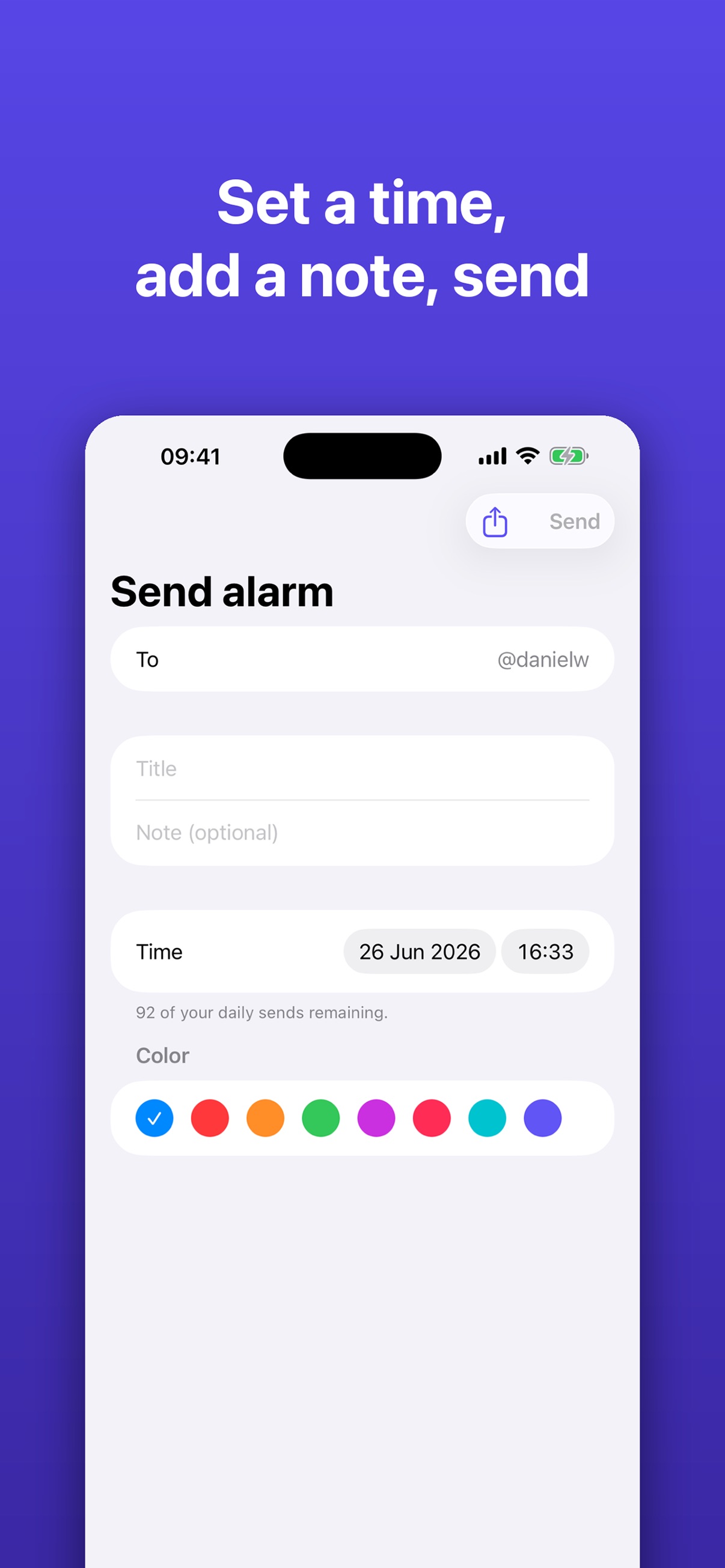
Select the recipient, date, time and a label. Check the time carefully if you are in different time zones.
The recipient allows alarms and accepts the request. Always Accept makes future requests from a trusted person easier.
Start with your daily allowance
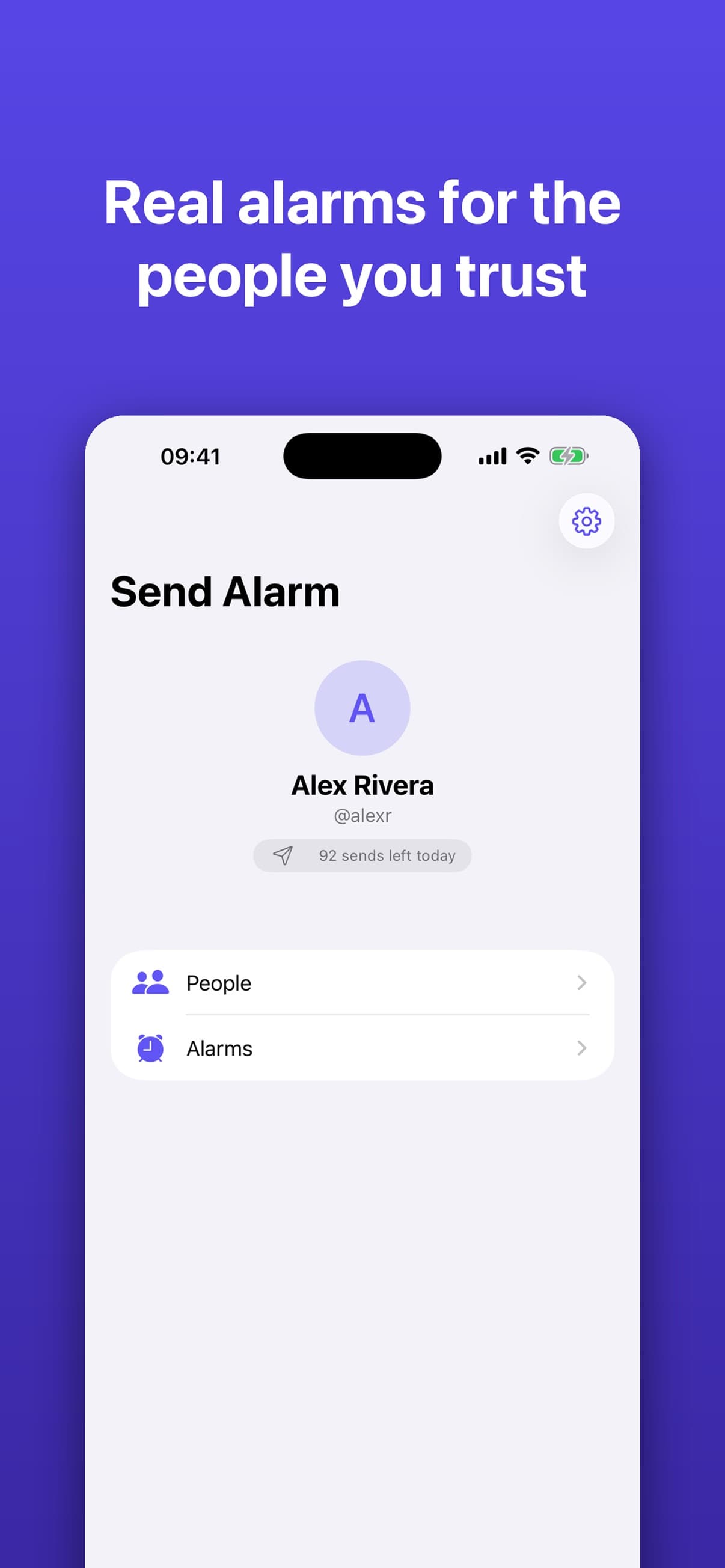
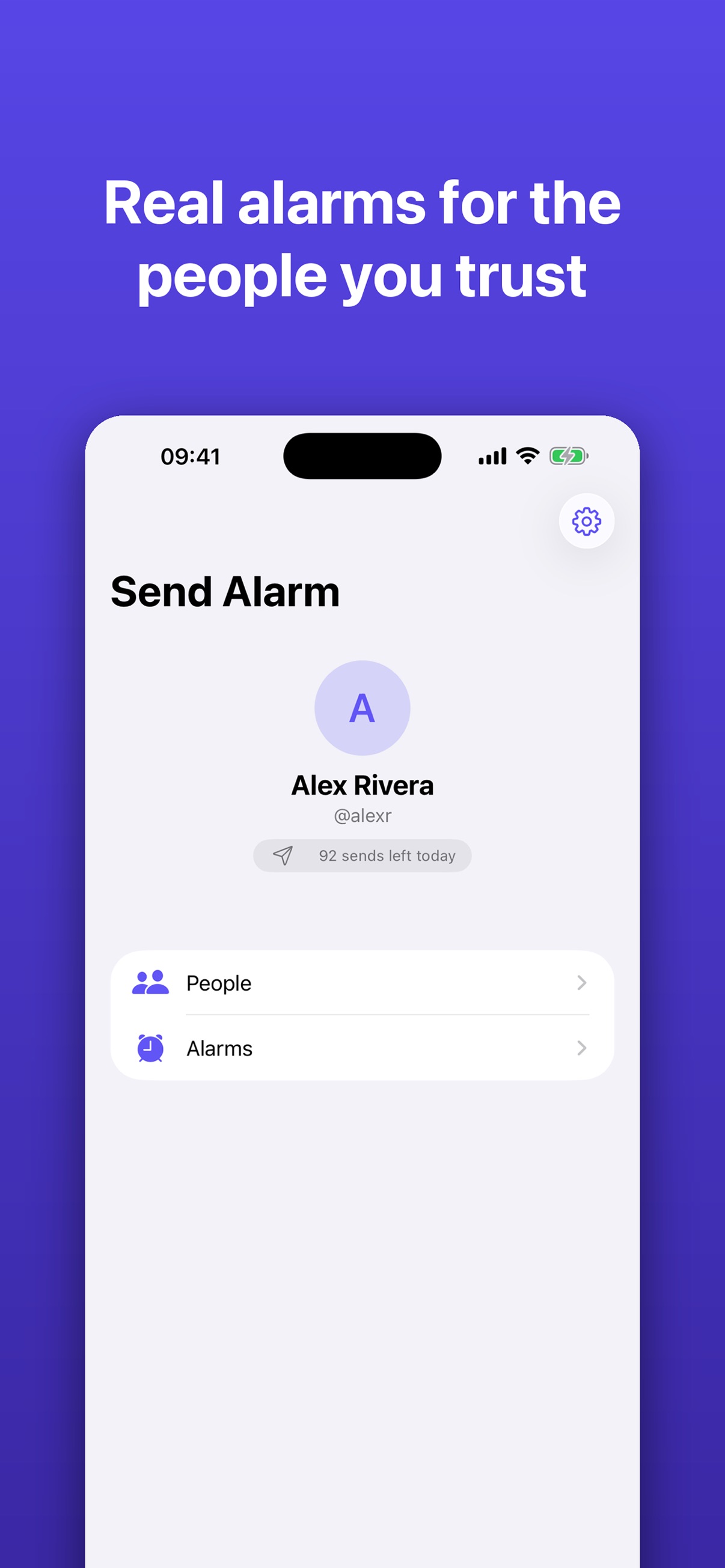
Send alarms within your daily allowance, receive requests and manage who you trust. Your remaining sends are shown in the app.
For regular senders
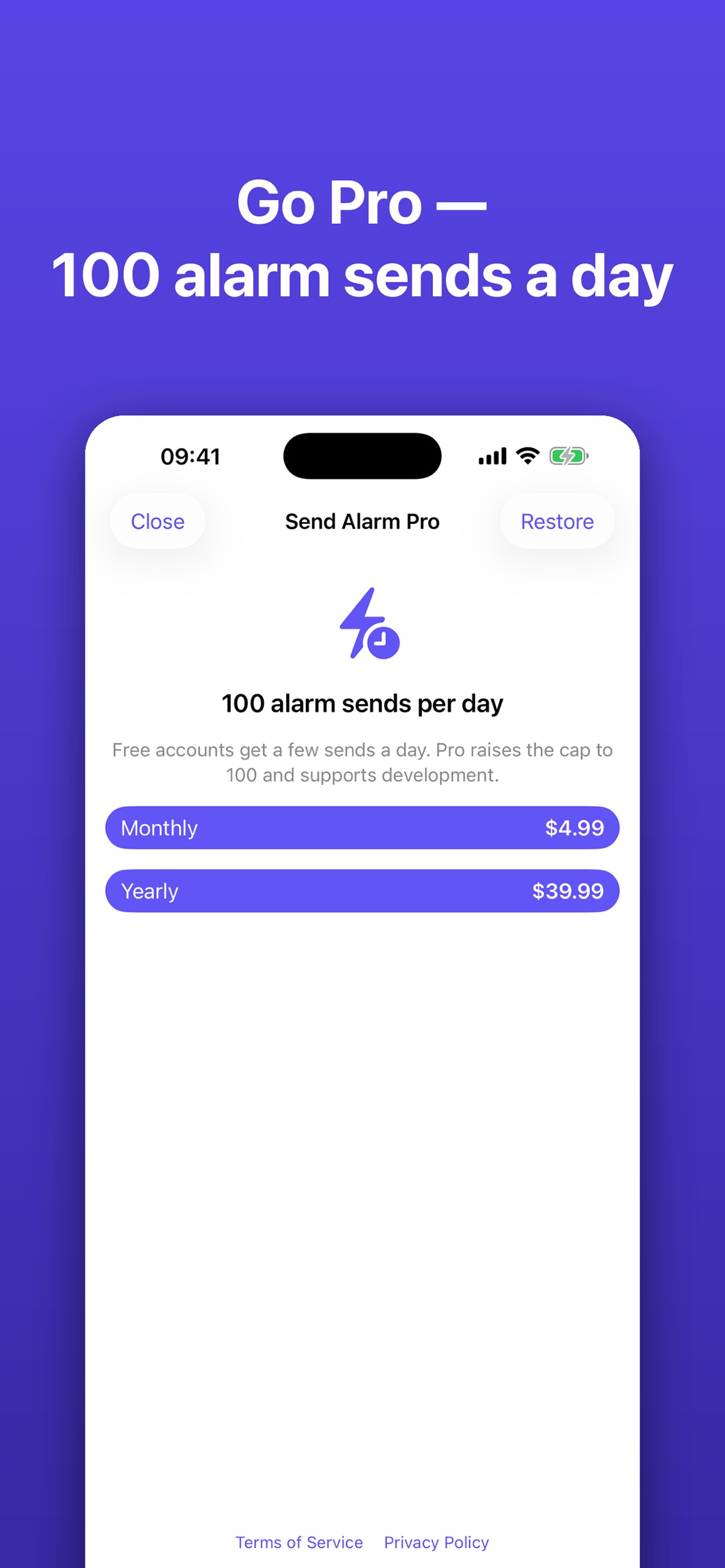
Send up to 100 alarms per day while your subscription is active. Choose a monthly or yearly subscription in the app.
Current prices and renewal terms appear before purchase. Restore Purchases is in Settings. Manage renewal through your Apple Account subscriptions.
Inside Send Alarm
Six screenshots from the English App Store listing. Scroll through the gallery and select an image to open it.
Before your first alarm
The same answers are available offline in the app’s Settings.
Contact supportChoose a person, a time and a label, then send an alarm request. The recipient chooses whether to accept it. Once accepted and scheduled, their iPhone uses Apple’s AlarmKit to ring the alarm.
Both people need Send Alarm on an iPhone with iOS 26 or later. Sign in with Apple and choose a username. The recipient must allow alarms; notifications help them see and respond to new requests.
Tap Send Alarm and search for your friend’s username, with or without @. If they have not joined yet, use Invite a friend to share the App Store link and your username. Ask for their username after they sign in.
Choose the time shown on your iPhone. A one-off alarm is sent for that moment in time, and the recipient sees it in their own local time. If you are in different time zones, check the displayed date and time before sending.
A new sender’s request needs your acceptance. You can accept once, decline, or enable Always Accept for someone you trust. Importing a shared alarm file or link is also an acceptance action and records trust for that sender.
Enable Always Accept for a person to let their future alarm requests be scheduled automatically. You can change this in People by opening their details. Automatic acceptance still depends on delivery and successful scheduling on your iPhone.
Open People, select the person and turn on Block. This prevents new alarm requests from that person. Review any alarms you have already accepted separately.
Open the alarm in History. If Cancel alarm is available, use it to cancel. A cancellation sent to another phone needs to reach that device, so check the status rather than assuming it arrived.
A successfully scheduled AlarmKit alarm can sound through Silent mode and Focus. A request notification alone does not mean an alarm has been scheduled. Check that the request was accepted and that alarm permission is enabled.
Ask the recipient to open Send Alarm and check the request. In Settings, check alarm permission, then check notifications in iPhone settings. Both phones need a connection to exchange requests and status updates. Also check whether the sender is blocked or the selected time has passed.
An internet connection is needed to send and receive requests, synchronise status and deliver cancellations. Once an alarm has been successfully scheduled on the receiving iPhone, it is handled locally by the system. This FAQ is also available offline in the app.
Quick send uses a temporary sign-in session shared with the widget. If that session has expired, open Send Alarm to refresh it, then try the widget again.
Free has a daily sending allowance; check your remaining sends in the app. Pro raises the limit to 100 sends per day while your subscription is active. Current monthly and yearly prices appear on the subscription screen.
In Send Alarm, open Settings and tap Restore Purchases using the Apple Account that made the purchase. To manage or cancel renewal, open iPhone Settings, tap your name, then Subscriptions and select Send Alarm.
Open Settings in Send Alarm and choose Delete Account. Confirm only when you want to remove your account. Deleting your account does not cancel an Apple subscription; manage that separately in iPhone Settings.
Someone asked you to wake them?
For iPhone with iOS 26 or later.
 (opens in a new tab)